


Learning Services
ChenLi Online Services — crafted with care for every student. From in-person tutoring to online review, our complete service platform is dedicated to student learning experience, effectiveness, and efficiency.
Online Service App 2.0 — check attendance, quiz scores, and announcements with the most intuitive and fully featured interface.
Digital Materials iStudy — post-class concept review, problem-solving, worked examples, and homework guidance for math students.
Online Make-up Classes & Tutoring — cloud-based make-up sessions and Q&A tutoring, crafted with care for every student.
* Installation: Compatible with Apple iOS and Android. Tap the link on your phone to download, or search for “ChenLi” on the App Store or Google Play and select “ChenLi Education 2.0” to install.
* After installing, enter your Branch, Student ID, last four digits of your ID, and Role on the login screen to access the system.

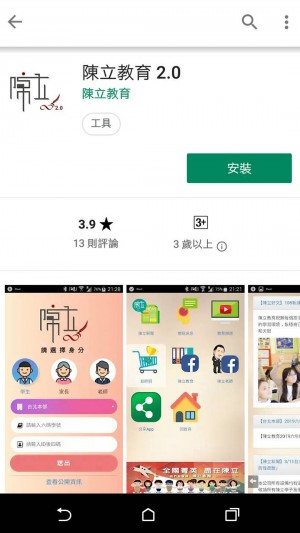
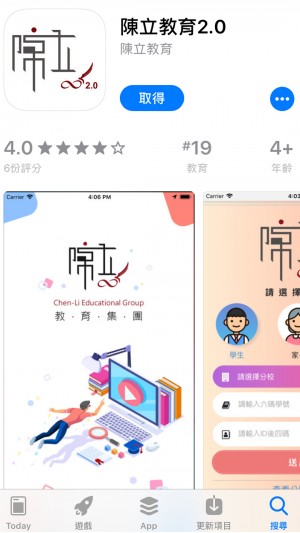
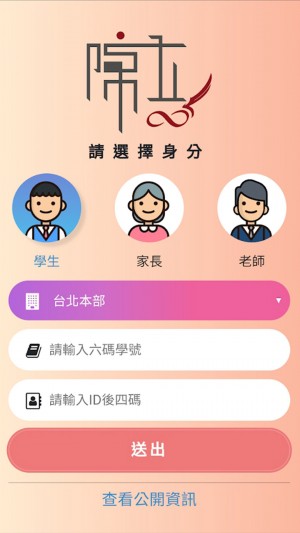
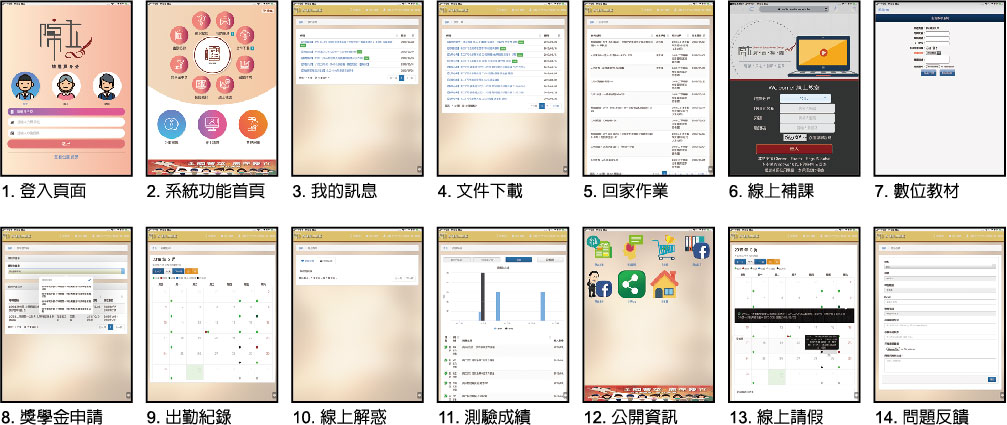
Log in to the Student Services system (Branch, Student ID, last four digits of ID). If you don't have a smartphone, you can also query in real time via your computer browser at https://srv.chenliedu.com。
- 01
This system is provided for math class students to review concepts, clarify difficult problems, study worked examples, and receive homework guidance after class. Access is granted to enrolled math students who have paid tuition in full and signed the class's Personal Data Use Consent Form.
- 02
If the system cannot be used or is ineffective due to environmental, hardware, or personal factors, the class bears no responsibility.
- 03
Basic hardware requirements: the system requires a mobile data connection or Wi-Fi. Smartphones and tablets must have an app capable of scanning QR codes. Desktop browsers on Windows or Mac must be IE9 or above, Safari, or Chrome.
- 04
Basic usage notes: your username and password will be sent by email. The username is a 6-digit number and the password is a 4-digit number. Scan the QR code with the app to enter the digital platform, then log in with your personal username and password.
- 05
Do not record, publicly broadcast, transmit, store, or share the account for any materials or audio-visual files from this system. Doing so may violate applicable laws, and the class reserves the right to pursue legal action.


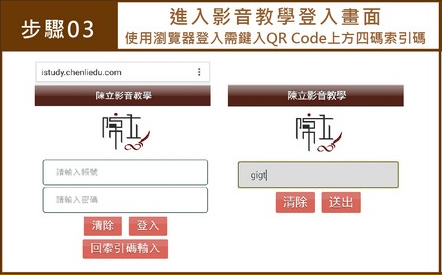

ChenLi Education currently offers online remote courses at all branches nationwide. For cloud-based make-up classes and online learning, please use the QR code digital materials activated in 2015.
Online Make-up Class System — How It Works
- This system is provided for ChenLi Education students to make up missed classes, re-watch sessions, or bridge course gaps. In compliance with personal data protection regulations, the system can only be activated after a parent has signed the class's Personal Data Protection Notice.
- All online courses are for ChenLi Education students' make-up use only. Do not record, publicly broadcast, transmit, or store any full or partial content. Doing so may violate applicable laws, and the class reserves the right to pursue legal action.
- The class bears no responsibility for make-up effectiveness affected by environmental or personal factors.
Basic Requirements for Using This System
- This site supports Chrome, Firefox, Edge, and Safari. Any version of Internet Explorer on Windows 10 or below is not supported.
Basic User Guidelines
- Use your ChenLi Education Student ID as your make-up class login.
- Confirm the subject and date before playing the video. Incorrectly deducted credits are non-refundable.
- Before your make-up session, visit the branch to collect class notes and any materials distributed that day.
- After clicking “Confirm: Start This Make-up Class,” you must complete it within three days.
- The class provides a fixed number of free online make-up sessions proportional to your enrolled class hours. If you exceed the free quota, please top up your Online Make-up Credits at the branch counter in advance.
- If you need tutoring or have questions after your make-up class, feel free to call or visit the branch.
- 01
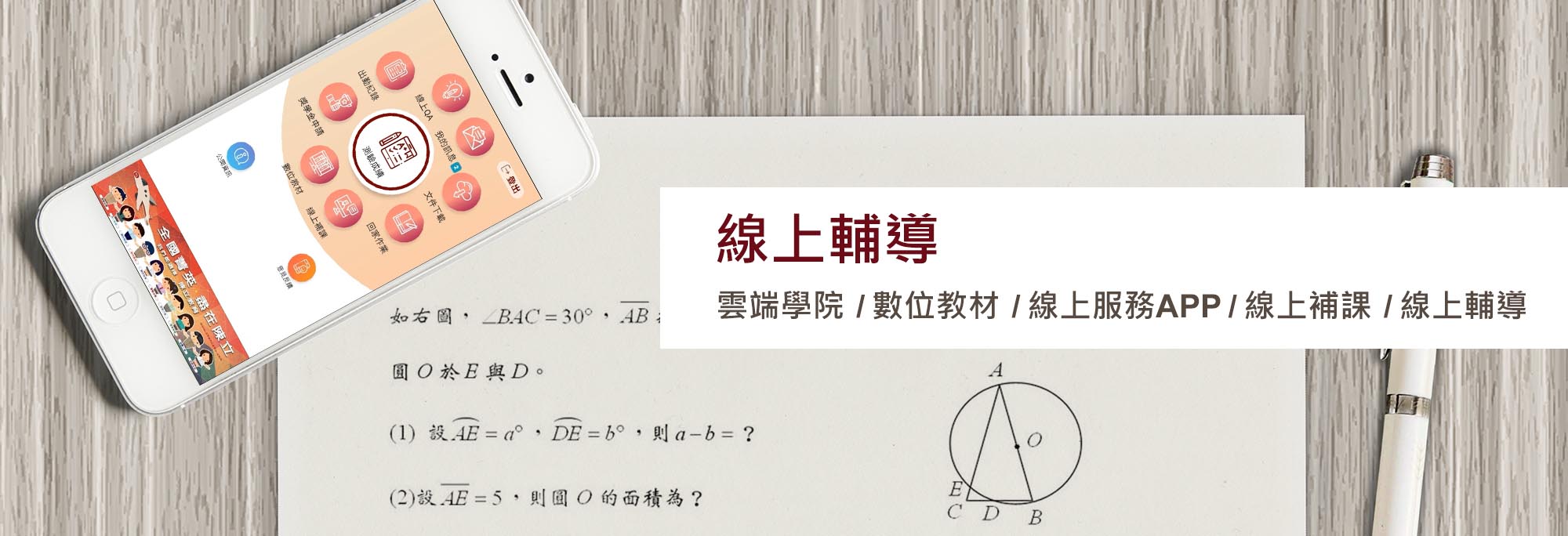
How to access: Log in to the ChenLi Education Student Services system (download the app first). Select your branch, enter your username (ChenLi Student ID), enter your password (last four digits of your national ID), select your role, and tap Online QA → Tutoring System to begin.
- 02
How to ask questions: You may submit questions as text, photos, or scanned problems.
- 03
Before your session: On mobile, log in using the ChenLi Education 2.0 App with Zoom pre-installed. On desktop, use the latest version of Chrome with the Zoom video software pre-installed.
- 04
Booking: Students may book a session up to seven days in advance.
- 05
Booking priority: [Priority branch — booking time] → [Non-priority branch — booking time].
- 06
Entering the session: During your tutoring time slot, today's tutoring session will appear on the App home screen and a push notification will be sent. Tap 'Enter Classroom' to begin.
- 07
If you accumulate two no-show records, your account will be locked and you will be unable to book any tutoring sessions for 30 days.
- 08
After the tutoring session ends, the system will direct you to a feedback page. Please rate the session. If you skip the feedback, you will be redirected to the feedback page each time you enter the online tutoring system.